



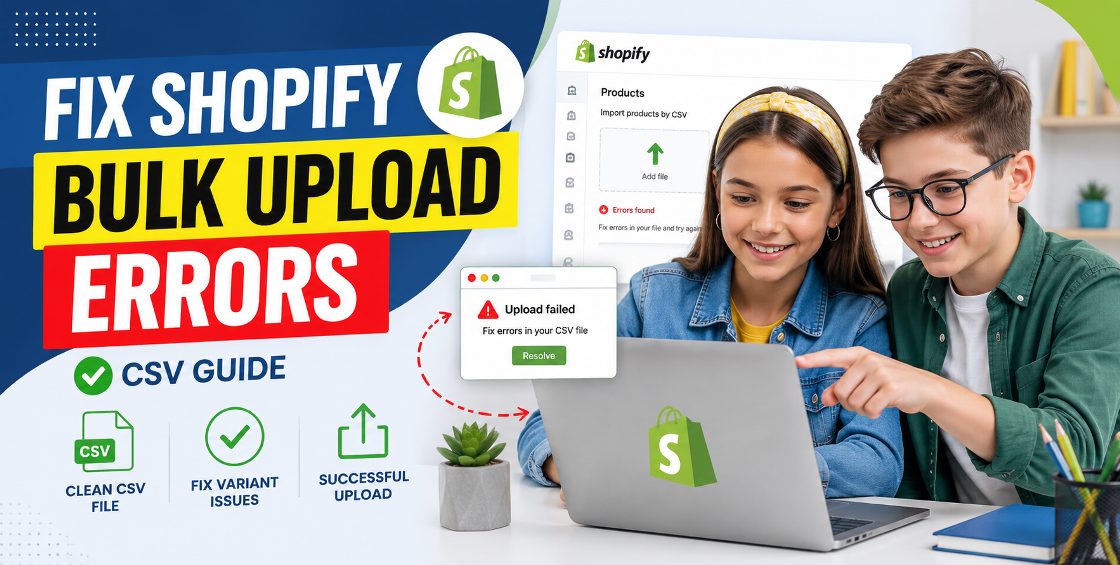
If you’ve ever tried uploading hundreds (or thousands) of products into Shopify and watched the import fail halfway through, you already know the feeling—half frustration, half panic.
We’ve seen this happen in real store setups more often than most people admit. A perfectly prepared CSV file looks ready… until Shopify throws vague errors like “variant not found”, “missing header”, or “failed to import products” with zero context.
For ecommerce teams handling fast-moving catalogs across the US, UK, Europe, Australia, and the Gulf region, bulk upload errors don’t just slow things down—they delay launches, break inventory sync, and create pricing inconsistencies across channels.
Primary Keyword: Debug Shopify bulk upload errors
Shopify requires strict variant grouping with consistent handles and aligned options.
Broken or inaccessible image URLs often cause silent import failures.
Each product must use a consistent handle without spaces or mismatches.
Ensure variants follow Shopify’s structure with correct Option1/Option2 alignment.
Upload in batches of 500–1000 products to isolate errors quickly.
Debugging Shopify bulk upload errors is less about guessing and more about structured data discipline.
Once formatting, variants, images, and inventory rules are aligned, uploads become predictable and stable.



Our Trusted Clients
















Our goal is to help our companies maintain achieve best class positions their respective industries & our team works occur that pleasures have to be repudiated.

Copyright © MyShopifyExpert . All rights reserved.