



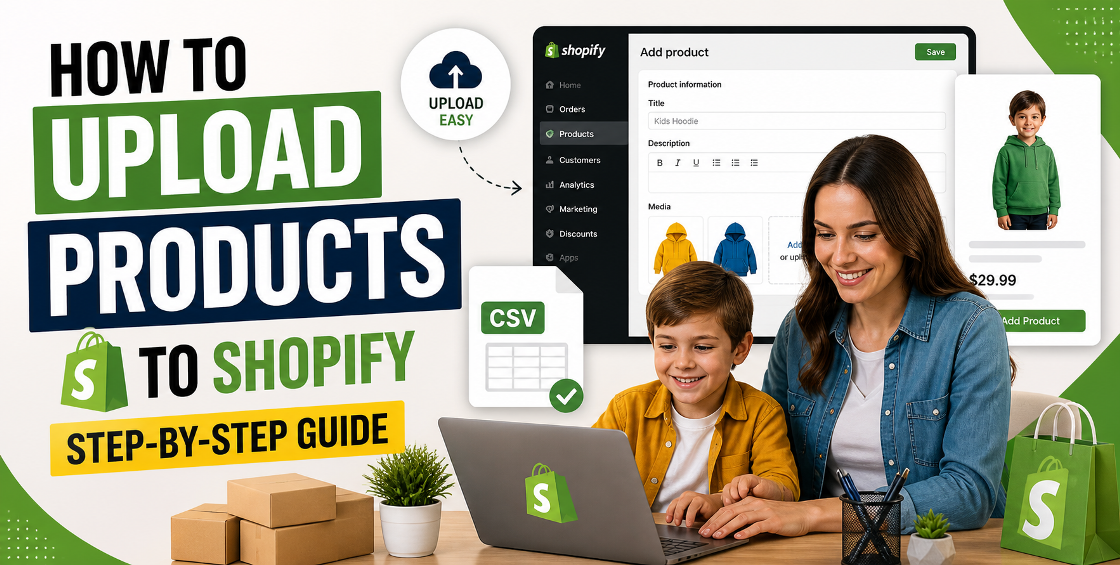
If you’ve ever tried uploading products to Shopify and thought, “Why is this taking forever?” — you’re not alone.
We’ve worked with ecommerce brands across the US, UK, EU, and the Gulf, and product uploads are one of the most underestimated parts of building a Shopify store.
What looks simple on the surface often turns into CSV errors, broken variants, missing images, and inconsistent product data.
Best for small stores with under 20–30 products. It’s simple but time-consuming at scale.
The most common method for growing Shopify stores. However, this is also where most errors happen — especially with variants and image mapping.
Ideal for large catalogs or dropshipping setups that require automation and syncing.
Pro Tip: Strong product descriptions directly impact conversion rates.
Once uploaded, structure your store properly using collections, tags, and optimized URLs.
Most Shopify issues come from messy supplier data, not Shopify itself.
We always recommend testing small batches before bulk uploads and cleaning CSV files before importing.
Uploading products to Shopify is not just a technical step — it’s the foundation of your entire ecommerce experience.
Done right, it improves SEO, conversions, and customer experience. Done wrong, it creates long-term operational issues.
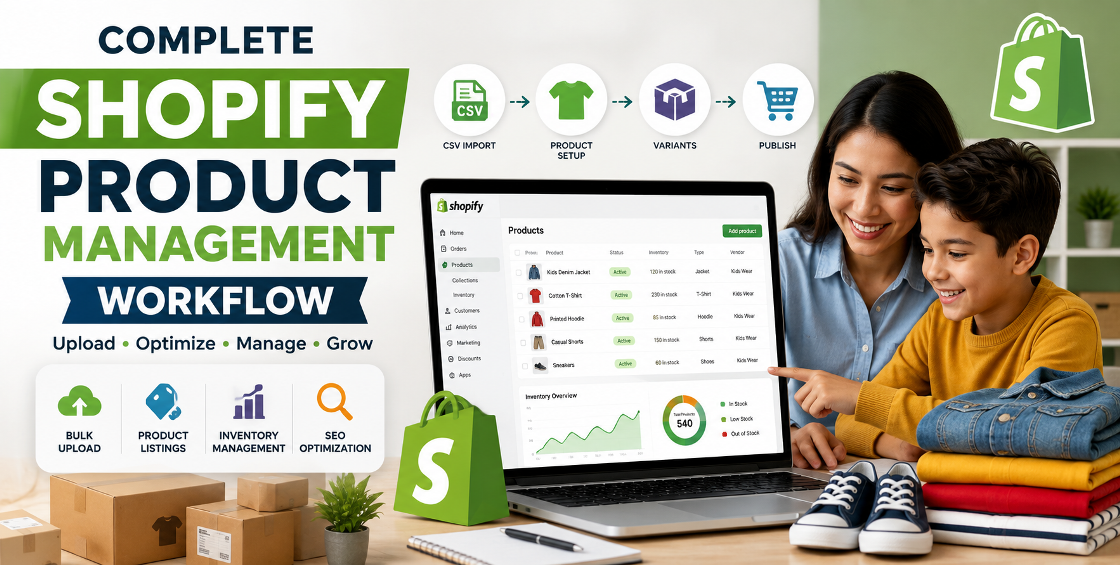

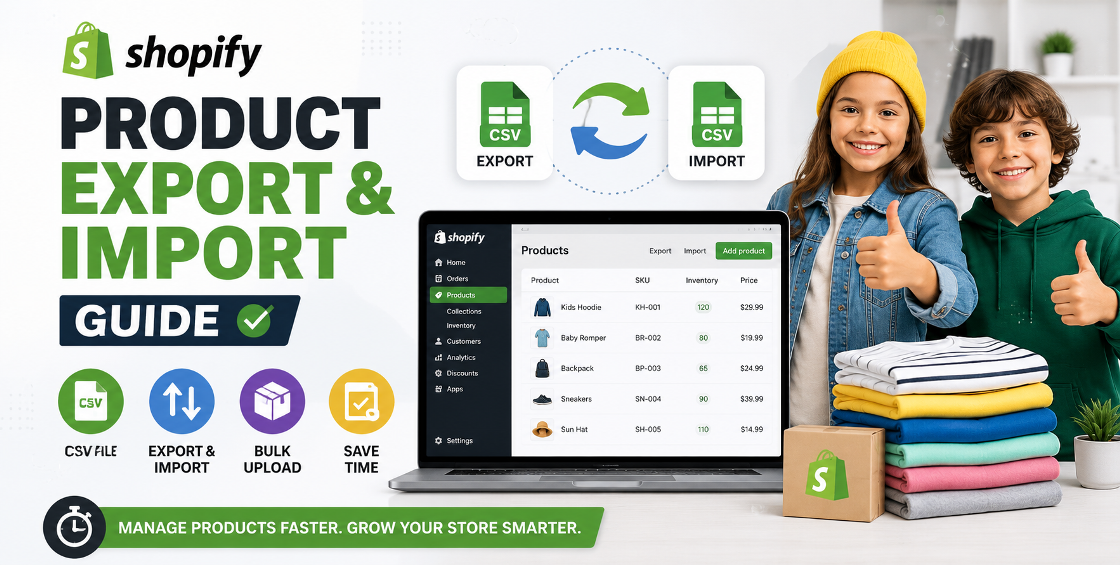


Our Trusted Clients
















Our goal is to help our companies maintain achieve best class positions their respective industries & our team works occur that pleasures have to be repudiated.

Copyright © MyShopifyExpert . All rights reserved.