



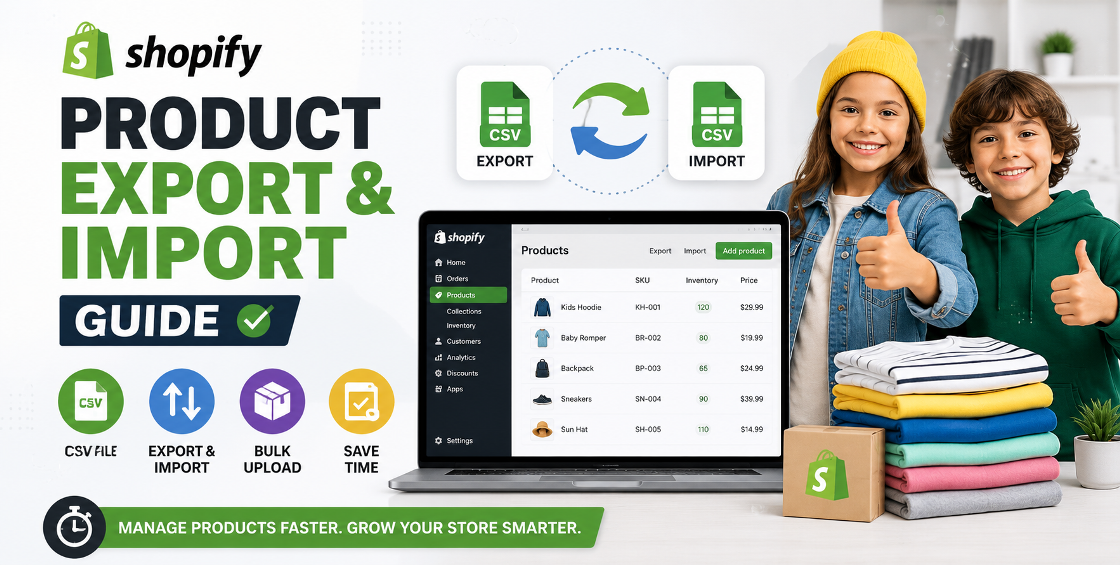
Managing hundreds—or even thousands—of products in Shopify isn't something most store owners want to do one product at a time. Whether you're launching a new store, migrating from another platform, updating seasonal inventory, or syncing supplier catalogs, Shopify's product import and export features can save countless hours.
The challenge is that bulk product management isn't always as simple as uploading a CSV file. A small formatting mistake can create duplicate products, break product variants, overwrite existing information, or trigger frustrating import errors. We've worked with businesses across the US, UK, Europe, Australia, New Zealand, and the Gulf region, and we've seen these issues firsthand.
This guide explains how Shopify product exports and imports work, common mistakes to avoid, and practical tips that make bulk product management faster, cleaner, and more reliable.
For growing ecommerce businesses, product data constantly changes.
You may need to:
Instead of manually editing each product, Shopify allows you to export your catalog into a CSV file, make changes, and import everything back into your store.
Done correctly, this process can save hours—or even days—of manual work.
A Shopify product export creates a CSV spreadsheet containing your product information.
Depending on your export settings, it may include:
Many store owners export products before making major catalog changes. It acts as a backup while making bulk editing much safer.
Importing products allows you to upload a CSV file into Shopify.
Common use cases include:
Import your entire product catalog instead of creating products manually.
Update hundreds of product prices in minutes.
Adjust stock quantities across large inventories.
Move products from another ecommerce platform without rebuilding everything from scratch.
Add supplier products quickly using properly formatted CSV files.
One of the biggest reasons imports fail is poor CSV formatting.
Here are a few best practices we always follow before importing:
Rather than creating a CSV from scratch, export an existing Shopify product list and use that structure.
This prevents missing columns or incorrect headers.
Shopify relies on exact field names.
Changing even a single column heading may cause import errors.
Each product variant should remain grouped under the same product handle.
Splitting or rearranging variant rows can lead to broken listings.
If importing product images, ensure image links are publicly accessible.
Private or broken URLs won't import correctly.
Encoding issues often create strange characters inside product titles or descriptions.
Always save using UTF-8 formatting.
Even experienced store owners occasionally run into import problems.
Usually caused by changing product handles or importing products as new instead of updating existing ones.
Solution:
Keep product handles consistent when updating existing products.
Incorrect option names or missing variant information often create unexpected products.
Solution:
Review Option1, Option2, and Option3 columns carefully before importing.
Images fail when URLs are inaccessible or incorrectly formatted.
Solution:
Verify every image link before importing.
Extra commas, hidden formatting, or spreadsheet software changes can break imports.
Solution:
Always review the final CSV before uploading.
Inventory locations must already exist inside Shopify.
Solution:
Confirm location names and inventory tracking settings before importing.
Managing a catalog with thousands of products requires a different approach.
Instead of uploading everything at once:
Import products in manageable groups.
This makes troubleshooting significantly easier.
Export your products before every major update.
A backup allows quick recovery if something goes wrong.
Upload a small sample of products before importing your full catalog.
This helps identify formatting issues early.
Consistent product titles, tags, vendors, and product types improve both store organization and search filtering.
Bulk imports are a great opportunity to improve:
Small SEO improvements across hundreds of products can have a meaningful impact on organic traffic.
After managing product uploads for stores of all sizes, we've noticed a few recurring patterns.
Files exported from ERPs or supplier systems frequently include invisible characters that trigger import errors.
Running a quick cleanup before importing can prevent hours of troubleshooting.
Vendor catalogs often use inconsistent categories, duplicate SKUs, or incomplete descriptions.
Cleaning and standardizing product data before importing creates a better shopping experience and improves search performance.
Stores selling apparel, electronics, or configurable products usually experience the most issues with variants.
Double-check option names, SKUs, inventory, and pricing before every bulk upload.
Many merchants accidentally change product handles during edits.
This can create duplicate listings or affect existing SEO performance if URLs change unexpectedly.
Avoid these common mistakes during Shopify product imports:
Preventing these mistakes is far easier than fixing them after an import.
To help users navigate your website and strengthen SEO, consider linking this guide to relevant service pages, such as:
These internal links help visitors discover related solutions while improving your site's crawlability.
Shopify's product export and import tools are incredibly powerful when used correctly. They simplify catalog management, reduce manual work, and make large-scale updates much more efficient.
The key is preparation. Clean product data, well-structured CSV files, consistent product handles, and careful testing can prevent most import issues before they happen.
Whether you're updating a few hundred products or migrating an entire ecommerce catalog, taking the time to follow best practices will save time, reduce errors, and keep your Shopify store running smoothly.

Our Trusted Clients
















Our goal is to help our companies maintain achieve best class positions their respective industries & our team works occur that pleasures have to be repudiated.

Copyright © MyShopifyExpert . All rights reserved.