



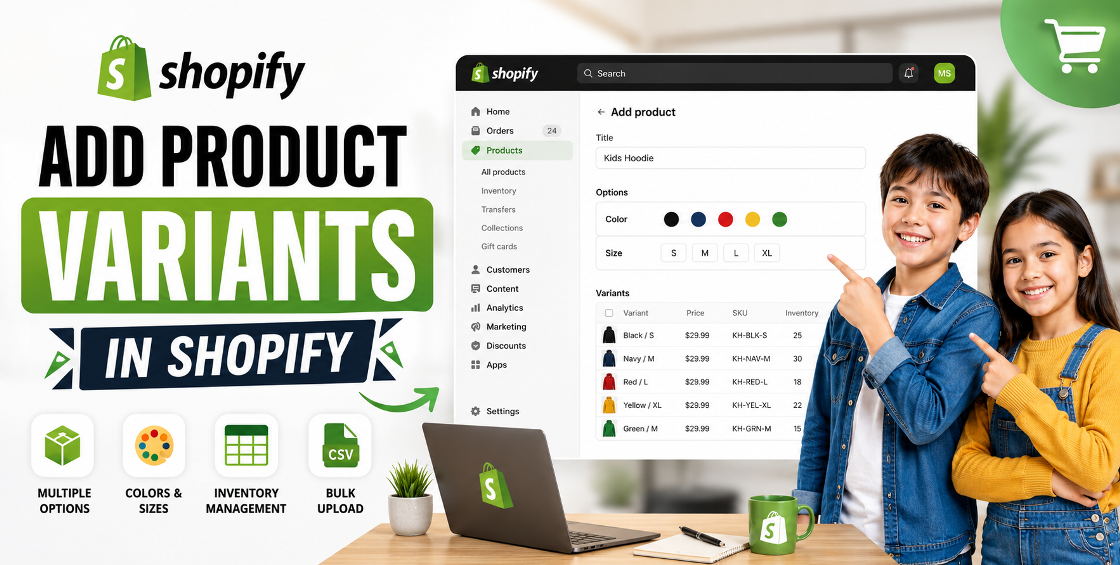
Managing products in Shopify sounds simple until you start dealing with multiple sizes, colors, materials, bundles, or region-specific options. That’s usually the point where many ecommerce store owners realize their product catalog can quickly become difficult to manage.
We’ve worked with Shopify stores that had thousands of SKUs across fashion, electronics, cosmetics, automotive accessories, and wholesale catalogs. One of the most common backend issues we see is poorly structured product variants. It affects inventory syncing, customer experience, filters, feeds, and even ad performance.
If you're trying to understand how to add product variants in Shopify properly — without creating duplicate listings or inventory headaches — this guide walks through the exact process, plus the practical mistakes most store owners discover too late.
Product variants allow you to offer different versions of the same product under a single listing.
For example:
Instead of creating separate product pages, Shopify lets you manage all these options inside one product.
Typical variant options include:
This keeps your catalog cleaner and improves customer experience.
If you're adding variants manually inside Shopify Admin, the process is straightforward.
Go to:
Shopify Admin → Products → Select Product
If the product doesn’t exist yet, create the base product first.
Inside the product page:
Now Shopify will allow multiple variant combinations.
| Option Name | Values |
|---|---|
| Size | S, M, L, XL |
| Color | Black, White, Navy |
Shopify automatically generates all possible combinations.
For example:
This is where many store owners accidentally create inventory confusion.
Every variant should ideally have:
One common issue we see during store audits is merchants leaving all variants under the same SKU. That creates problems with inventory syncing, fulfillment apps, ERP systems, and Google Shopping feeds.
If you use inventory management software or warehouses, unique SKUs are critical.
Shopify allows specific images for each variant.
For example:
This improves conversions because customers immediately see the exact product they selected.
On mobile especially, proper variant images reduce confusion and returns.
Before scaling your catalog, it’s important to know Shopify’s limitations.
By default, Shopify supports:
Example:
Once stores grow, this becomes restrictive.
We’ve worked with apparel and automotive stores that exceeded variant limits quickly. In those cases, merchants often use:
Choosing the wrong structure early can hurt SEO and collection organization later.
For stores with hundreds or thousands of products, manual editing is unrealistic.
Bulk imports become essential.
Shopify’s CSV import system allows large-scale variant uploads.
However, this is also where many businesses run into problems.
If product handles are inconsistent, Shopify may create duplicate products instead of variants.
Incorrect option formatting can split variants into separate listings.
Missing SKUs often break inventory syncing with fulfillment systems.
Variant image URLs must align properly inside CSV columns.
One misplaced comma can affect hundreds of products.
That’s why experienced Shopify teams usually validate CSV structures before importing large catalogs.
Customers should understand options instantly.
Bad example:
Small / Slim / European / Cotton / Blue Shade 2
Good example:
Overcomplicated variants reduce conversions.
Different pricing per variant works well for:
But excessive pricing variations can confuse customers.
Clear labeling matters.
Many merchants don’t realize Shopify variants generate unique URLs.
Example:
?variant=123456
These links are useful for:
Sending users directly to the selected variant often improves conversion rates.
A common misconception is that every variant needs a separate product page.
In many cases, keeping variants under one optimized product page is better for SEO because:
However, separate pages may make sense when variants target different search intent.
Example:
That decision should be based on search demand and catalog strategy.
After handling large Shopify catalogs, here are a few practical lessons many businesses only learn after scaling.
Supplier spreadsheets are often inconsistent.
We’ve seen imports where:
“Black” became:
That creates messy filters and duplicate variant logic.
Always standardize variant naming before import.
Some variant apps conflict with:
Before installing advanced variant tools, test compatibility carefully.
Poor variant setup affects:
Especially on large stores, clean variant taxonomy improves user experience significantly.
Many Shopify themes display variants poorly on mobile.
We often optimize:
Tiny UX improvements here can noticeably improve conversion rates.
This creates:
Variants usually work better unless products target separate keywords.
Without variant-level inventory:
Always track inventory per variant.
Avoid mixing formats like:
Consistency matters for filtering and automation.
Customers want visual confirmation.
Missing variant images reduce confidence and increase returns.
Never upload large CSVs directly to a live store without testing.
Even experienced teams run staging checks first.
Native Shopify variants work well for most stores.
But apps become useful when you need:
This is especially common in:
The key is choosing apps that won’t slow down storefront performance.


Our Trusted Clients
















Our goal is to help our companies maintain achieve best class positions their respective industries & our team works occur that pleasures have to be repudiated.

Copyright © MyShopifyExpert . All rights reserved.